There's a notion of Windows Guest OS versions in Windows Azure. Guest OS versions can actually be (in Q1 2012) either
a stripped down version of Windows Server 2008 or a similiar version of Windows Server 2008
R2.
You can upgrade your guest OS in Windows Azure Management Portal:
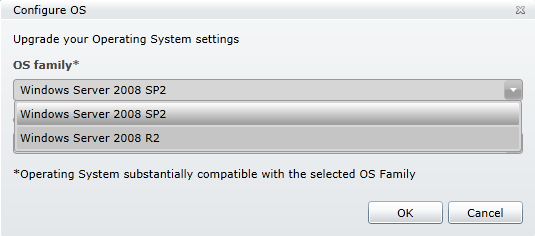
Not that it makes much difference, especially while developing .NET solutions, but I like to be on the newest OS
version all the time.
The problem is that the defaults are stale. In 1.6 version of the Windows Azure SDK, the default templates all
specify the following:
ServiceConfiguration serviceName="YourServiceName"
xmlns="
http://schemas.microsoft.com/ServiceHosting/2008/10/ServiceConfiguration"
"
osFamily="1"
osVersion="*">
...
ServiceConfiguration
The osFamily attribute defines OS version, with 1
being Windows Server 2008 and 2 being Windows Server 2008 R2. If you omit the osFamily attribute, the default is 1 too! Actually
this attribute should probably move to the Role element, since it defines
the version of the role's guest OS.
ServiceConfiguration serviceName="YourServiceName"
xmlns="
http://schemas.microsoft.com/ServiceHosting/2008/10/ServiceConfiguration"
osFamily="1"
osVersion="*">
Role name="YourRoleName1"
instances count="2"
...
Role
Role name="YourRoleName2"
Instances count="1"
...
Role
ServiceConfiguration
It doesn't make sense to have it normalized over all roles. Also, this schema makes it impossible to leave it out in
VM role instances, where it gets ignored.
The osVersion attribute defines the version which should be deployed for your guest
OS. The format is * or WA-GUEST-OS-M.m_YYYYMM-nn.
You should never use the latter one. Asterisk, normally, means 'please upgrade all my instances
automatically'. Asterisk is your friend.
If you want/need Windows Server 2008 R2, change it in your service configuration XML.
What this means is, that even if you publish and upgrade your guest OS version in the Azure Management Portal, you will get reverted the next time you update your
app from within Visual Studio.